

How to Watch Our Facebook LIVE Without Missing a Hide
(And Fix Lag or Delayed Comments)
If you've ever watched a Facebook LIVE sale and noticed the video lagging, buffering, or comments showing up before the item number is called, you're definitely not alone.
Most people watch LIVE sales from their phones, and sometimes Facebook places viewers on a slightly delayed stream or limits video performance based on device settings.
The good news is that a few quick steps can dramatically improve your viewing experience so you don’t miss any hides during the show.
Below is a simple guide that covers:
• Things you can do before the show
• Quick fixes during the LIVE
• Optional advanced settings for those who want to optimize their device
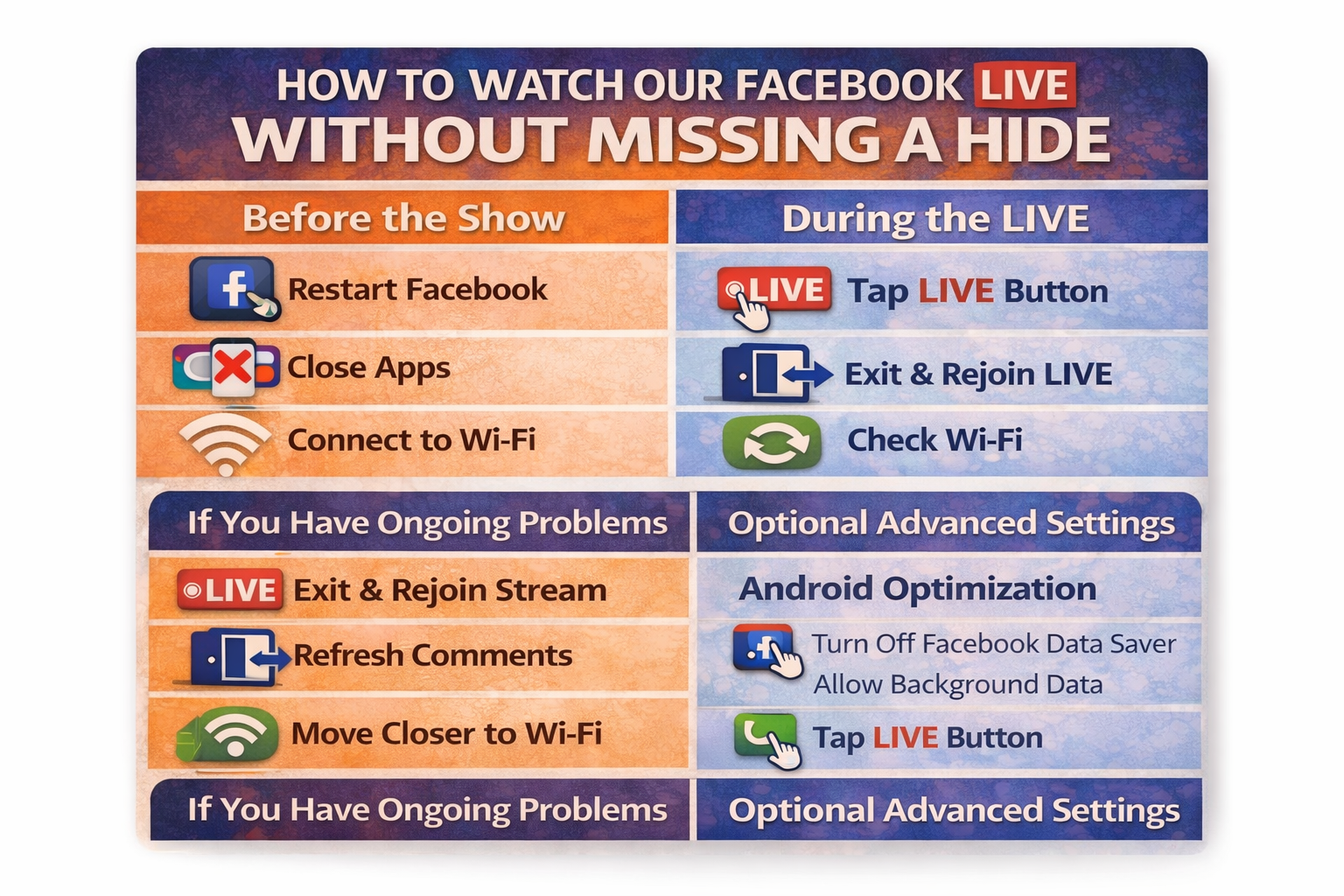
Before the LIVE Show Starts
Doing these quick steps a few minutes before the show can prevent most streaming issues.
Restart the Facebook App
Closing and reopening the Facebook app creates a fresh connection to the LIVE stream.
This helps prevent Facebook from loading an older or delayed version of the video.
Close Other Apps
If many apps are open on your phone, it can slow down video streaming.
Before the show, close apps like:
• YouTube
• Instagram
• TikTok
• Other streaming apps
This frees up your phone’s memory so the LIVE video runs more smoothly.
Connect to Strong Wi-Fi
LIVE video performs best on a stable Wi-Fi connection.
If possible:
• Sit near your router
• Avoid switching between Wi-Fi and cellular during the show
Turn Off Battery Saver
Battery saving modes sometimes reduce video performance to conserve power.
Turning this off can help your phone stream video more smoothly.
Android Users: Turn Off Data Saver
Some Android phones limit video streaming quality when Data Saver is turned on.
Turning this off may improve streaming quality during LIVE shows.
When the LIVE Show Starts
There are two simple things that help make sure you're seeing the stream in real time.
Tap the Red LIVE Button
If you see a red LIVE button on the video, tap it.
This ensures you're watching the current broadcast instead of a delayed stream.
Switch Comments to “Newest”
Facebook often defaults comments to Most Relevant, which can delay what you see.
If comments seem slow:
-
Tap the comment filter
-
Change it to Newest
This allows you to see comments in real time, which is especially important during auctions or item claims.
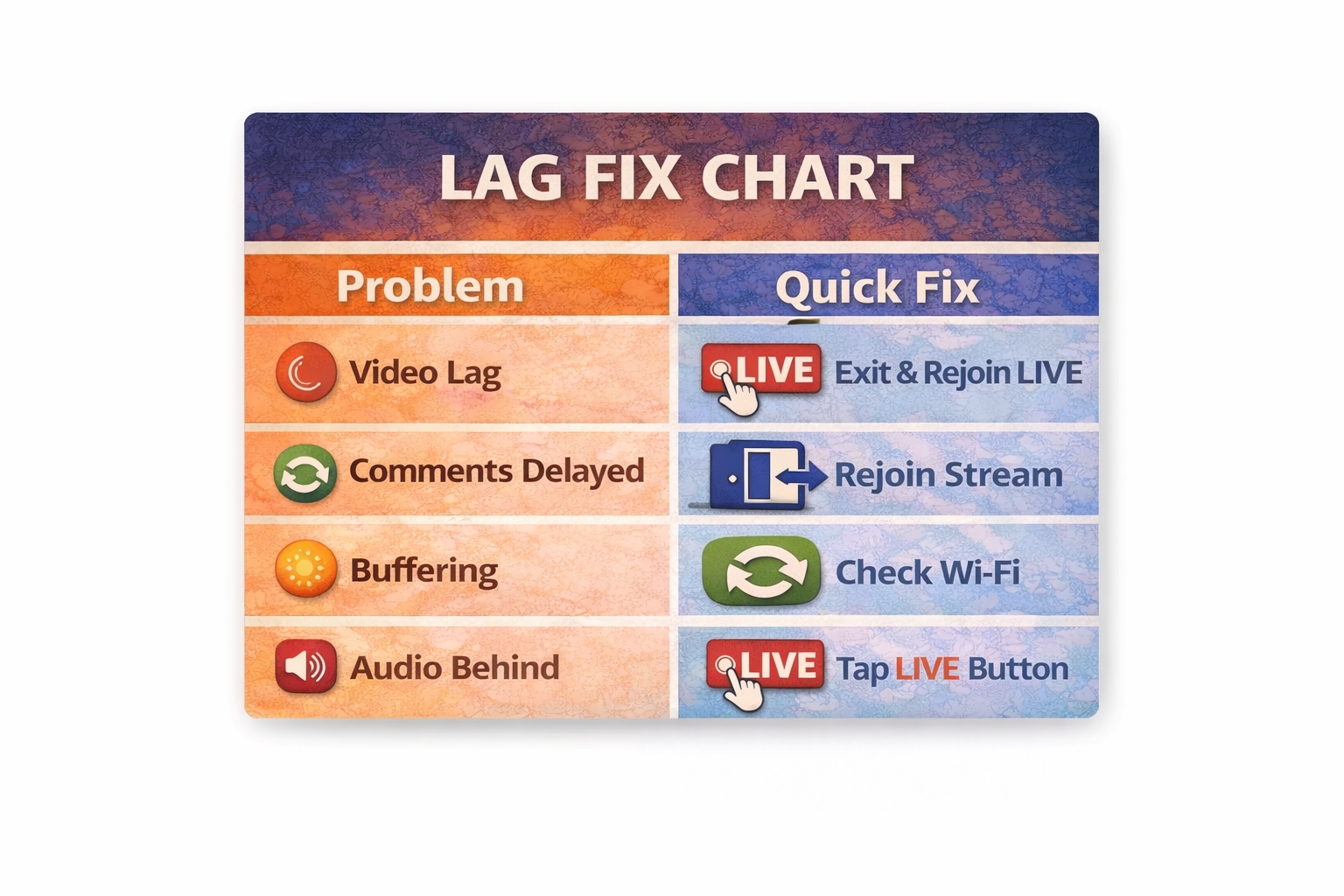
If the Stream Lags During the Show
Even with a good internet connection, sometimes a stream may still lag. These quick fixes usually solve the problem.
Exit the LIVE and Rejoin
Leaving the stream and coming back reconnects your device to the broadcast.
This is the most common fix for lag.
Refresh the Comments
If the video looks fine but comments appear delayed, leaving and rejoining the LIVE usually refreshes them.
Move Closer to Your Router
Weak Wi-Fi signals can cause buffering or delayed video.
Moving closer to your router can help improve the connection.
Optional Advanced Settings
Some viewers like to optimize their phone settings for the best streaming experience.
These steps are optional but may improve performance.
Please note that different phone models may label settings slightly differently, so the steps below are general guidelines.
Android Advanced Settings
Turn Off Facebook Data Saver
-
Open the Facebook app
-
Tap the menu (three lines)
-
Go to Settings & Privacy
-
Tap Settings
-
Look for Media or Videos
-
Turn Data Saver OFF
Allow Background Data for Facebook
-
Open your phone Settings
-
Go to Apps
-
Select Facebook
-
Tap Mobile Data & Wi-Fi
-
Allow background data
Disable Battery Optimization for Facebook
-
Open Settings
-
Go to Apps
-
Select Facebook
-
Tap Battery
-
Turn off battery optimization if available
iPhone Advanced Settings
Enable HD Video
-
Open the Facebook app
-
Tap the menu icon
-
Go to Settings & Privacy
-
Tap Settings
-
Find Media
-
Turn on HD Video
Turn Off Low Power Mode
-
Open Settings
-
Tap Battery
-
Turn off Low Power Mode
Test Your Internet Speed (Optional)
If you want to check your internet connection before the show, you can run a quick speed test.
A good place to do this is:
For smooth streaming, speeds around 10–25 Mbps or higher usually work well.
It’s best to test this well before the show so you have time to troubleshoot if needed.
Additional Tips for the Best Viewing Experience
Use the Facebook App
Watching the LIVE show in the Facebook app usually performs better than watching in a browser.
Turn Off VPN Services
If you use a VPN service, it can sometimes slow down live video streams.
Turning it off during the show may improve performance.
Want the Quick Viewer Checklist?
If you'd like the quick reference version of this guide, you can view our LIVE viewer checklist here:
https://distantdrumsonline.com/facebook-live-sale/
We want everyone to have the best possible experience during our LIVE sales so you never miss a great hide.